


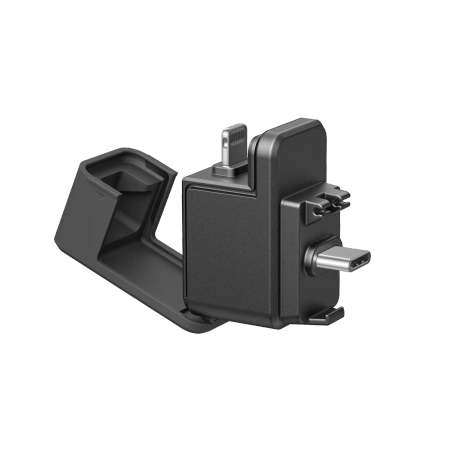


Insta360 X5 Quick Reader
Special offer
Insta360 X5 Quick Reader
- Plug and play, shoot and store! The Insta360 Quick Reader allows seamless transfers and editing on your phone or computer.
Quick Reader
Plug and play, shoot and store! The Insta360 Quick Reader allows seamless transfers and editing on your phone or
computer.
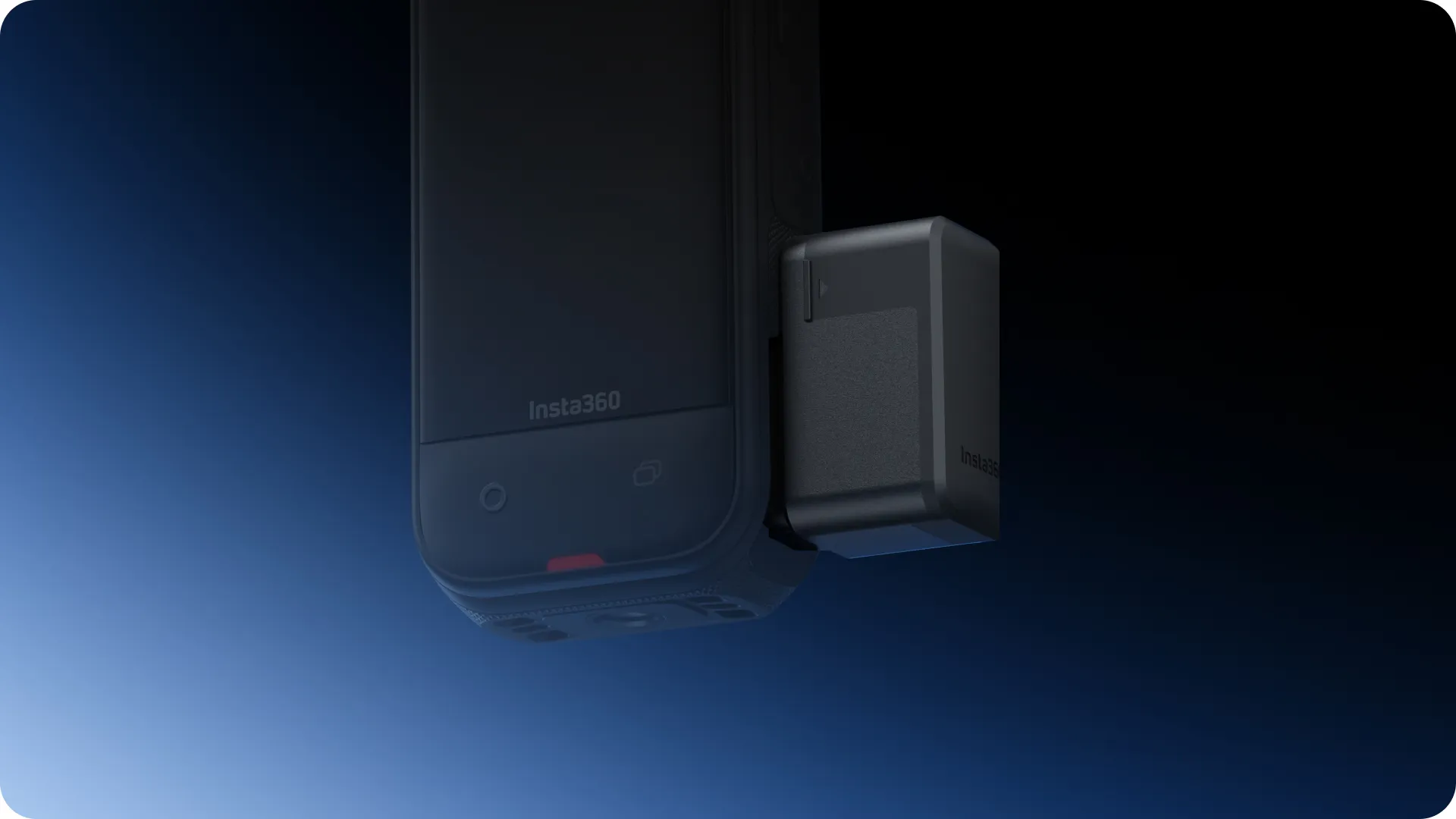
Plug, play, go.
Fast and stable connectivity lets you transfer footage on the go without the need for Wi-Fi.
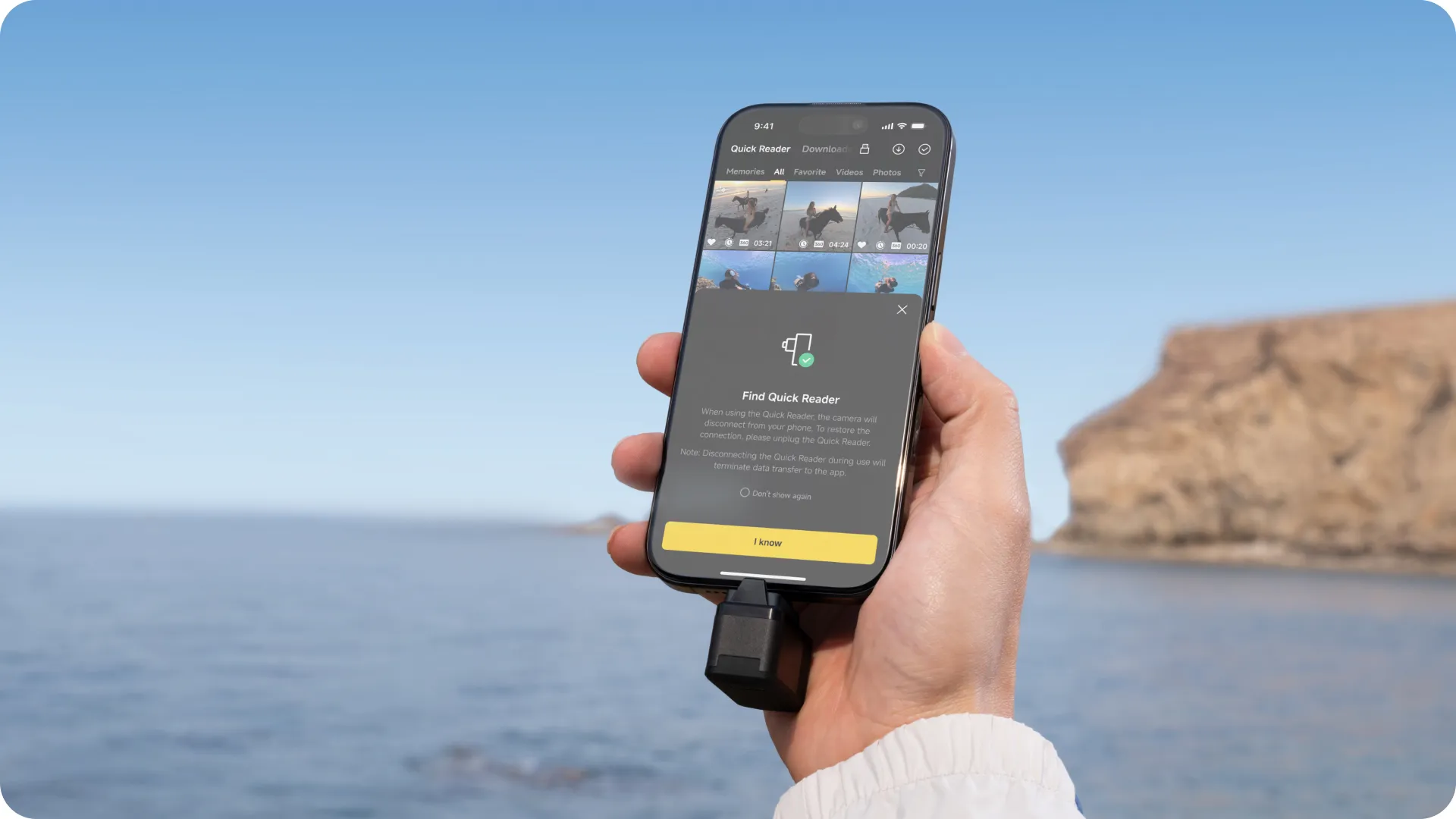
No Wi-Fi needed
Transfer your footage directly from camera to phone—no wireless setup required.
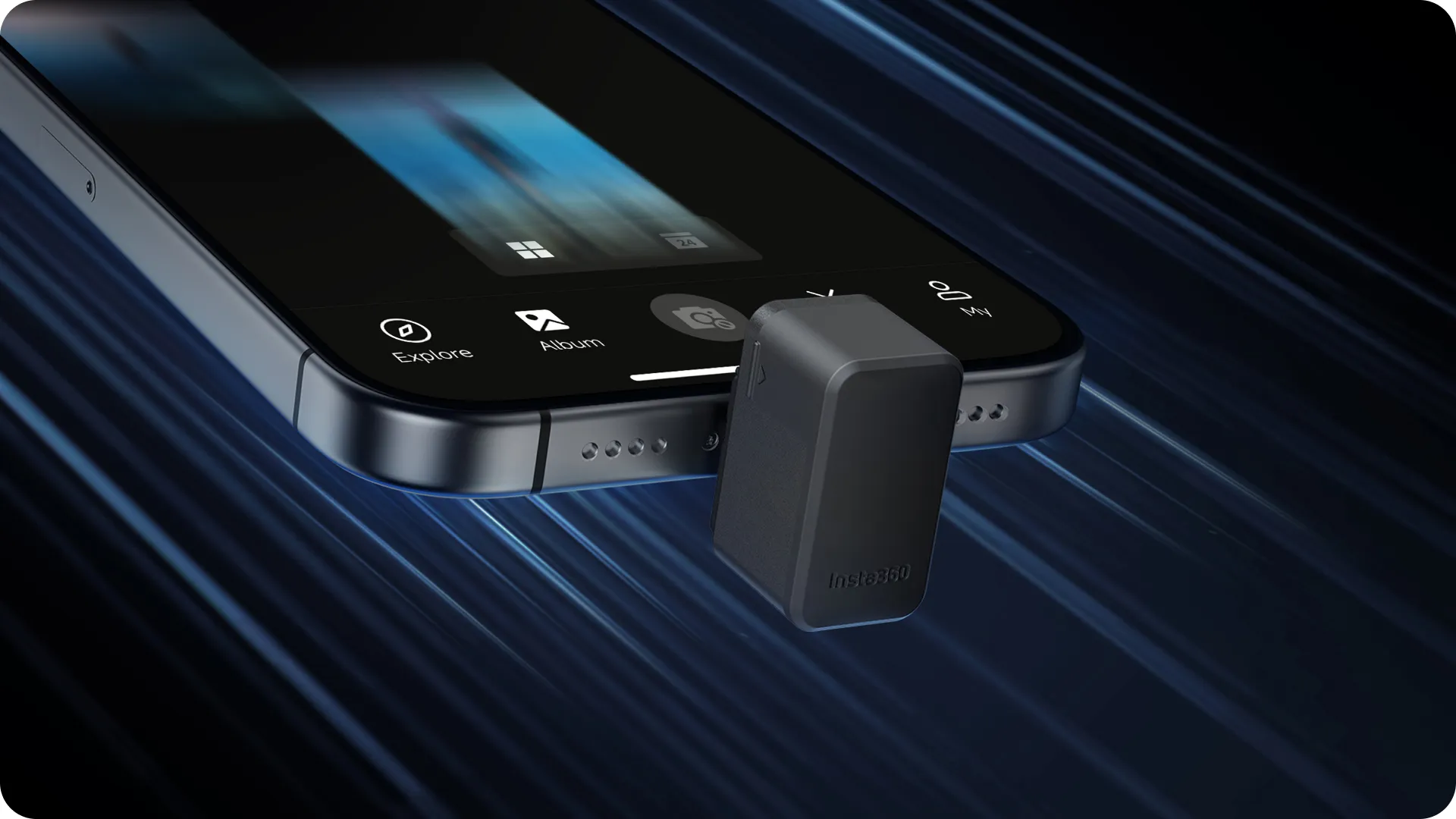
Charge while editing
Use the built-in USB-C charging port to power your phone while you edit and export.
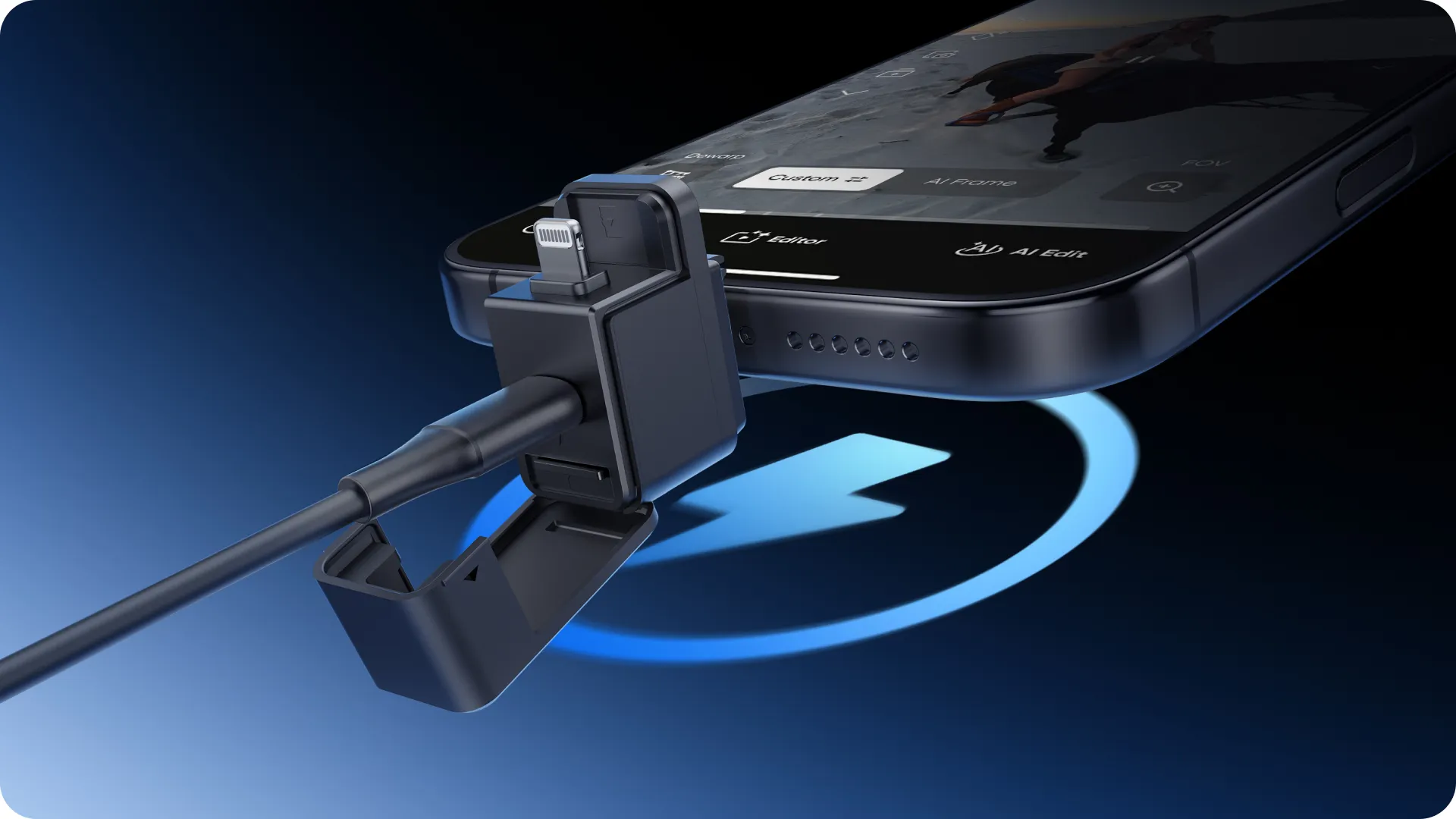
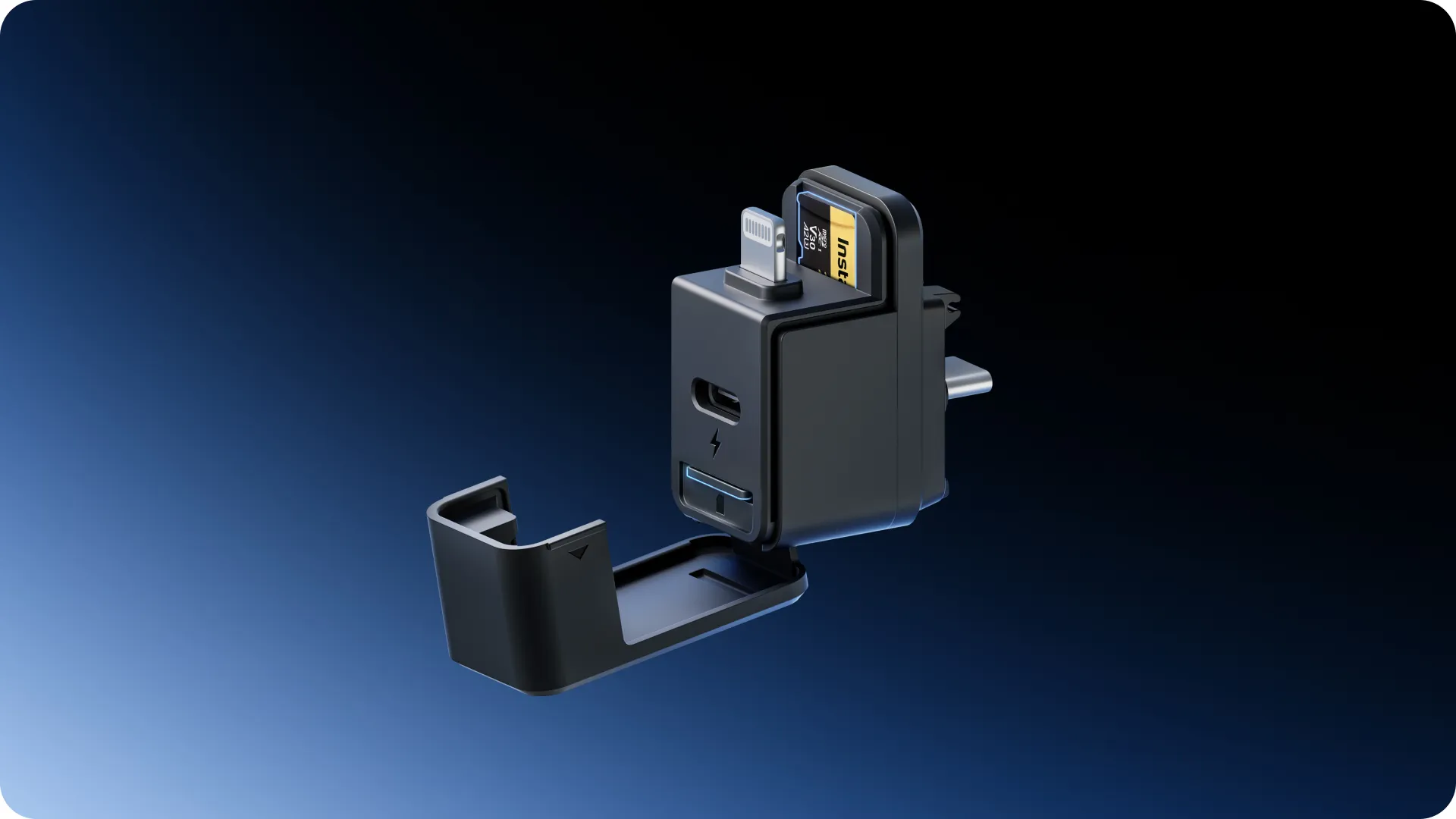
Expandable and smart
Automatically prioritizes saving content to your Quick Reader for an even faster workflow.
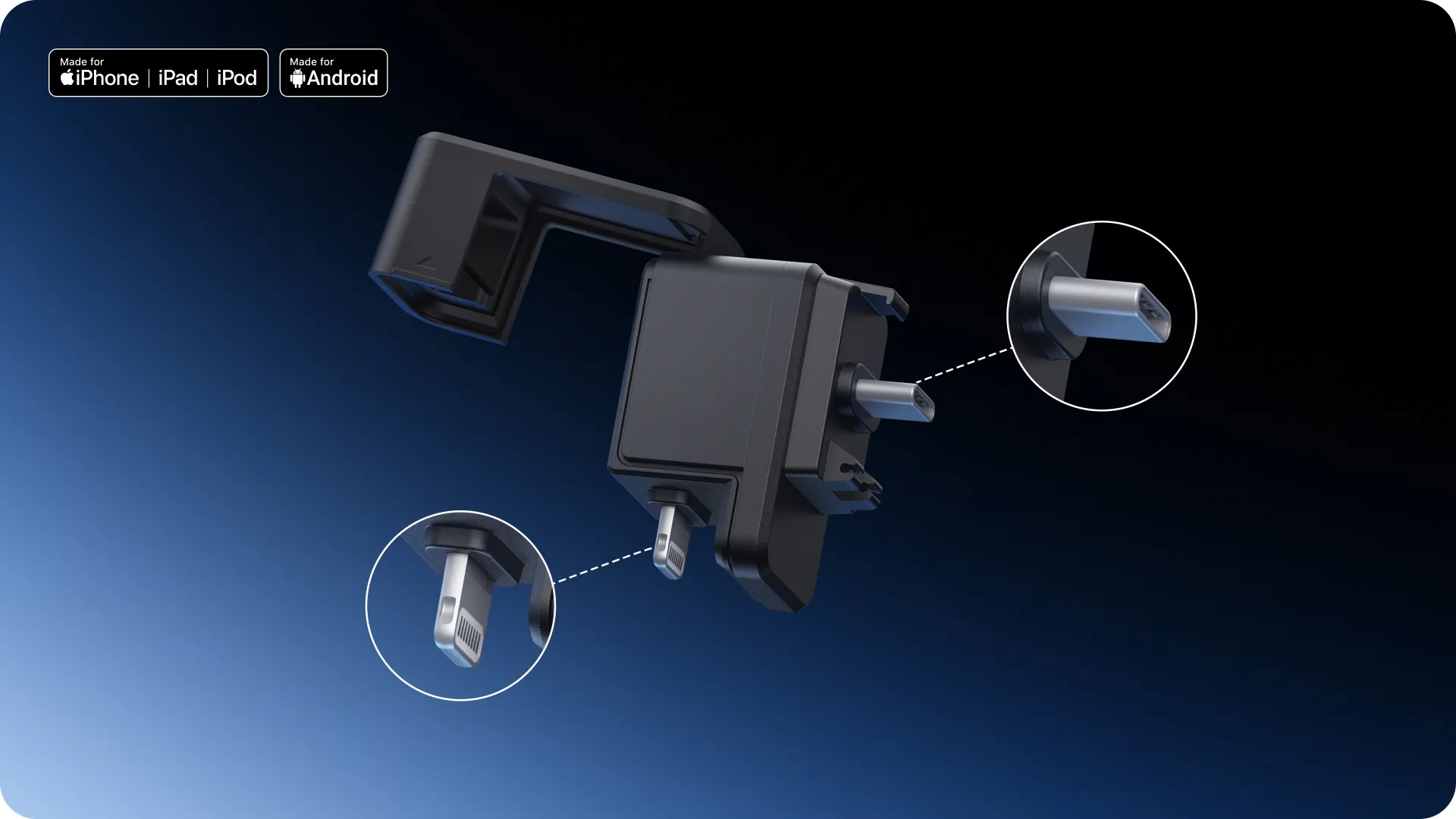
iOS & Android compatible
With both USB-C and Lightning connectors, it works with a wide range of devices.
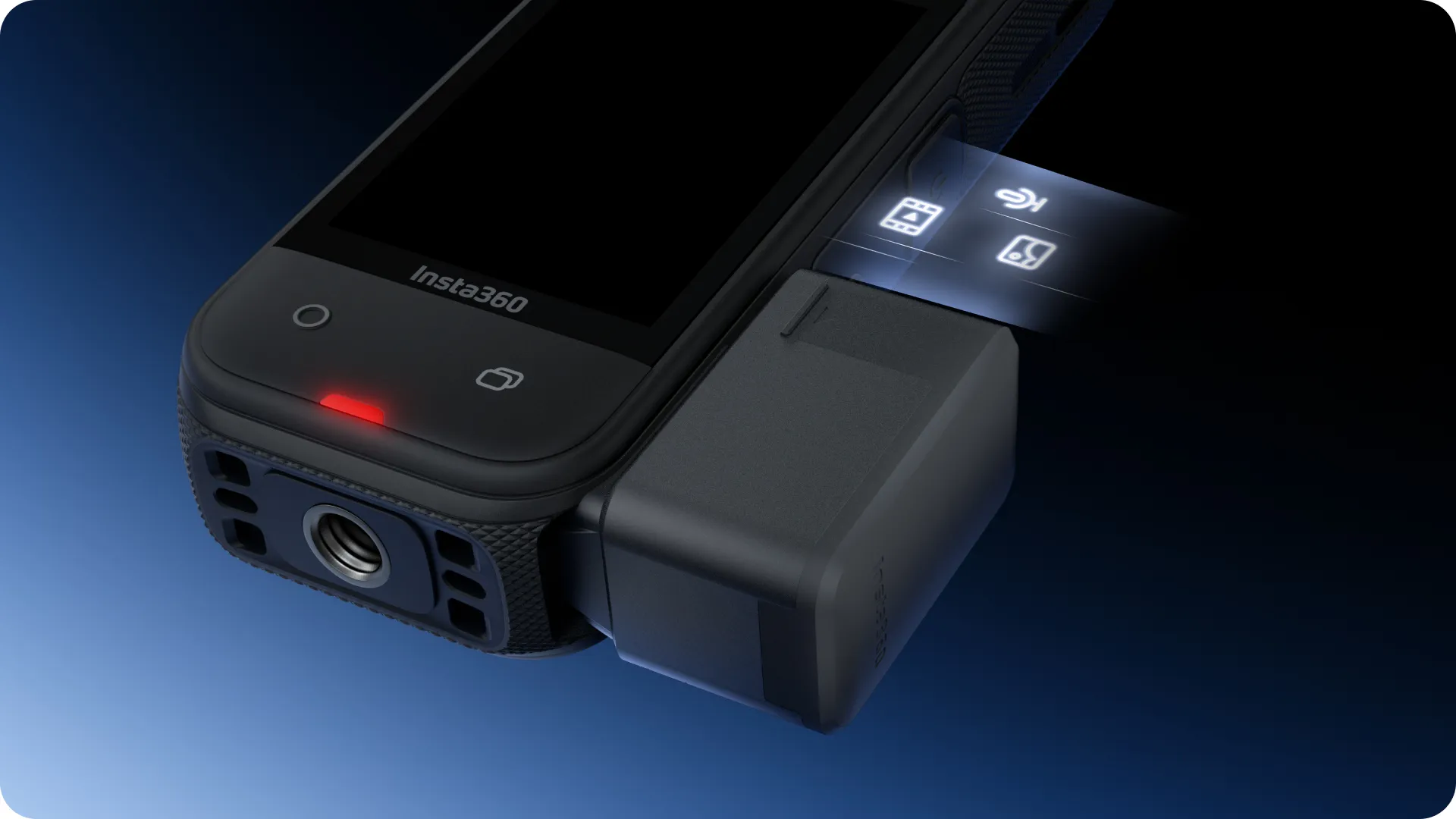
Next-gen design
Redesigned latch system and extra slot for microSD card storage.
How to Use
Connected to a camera
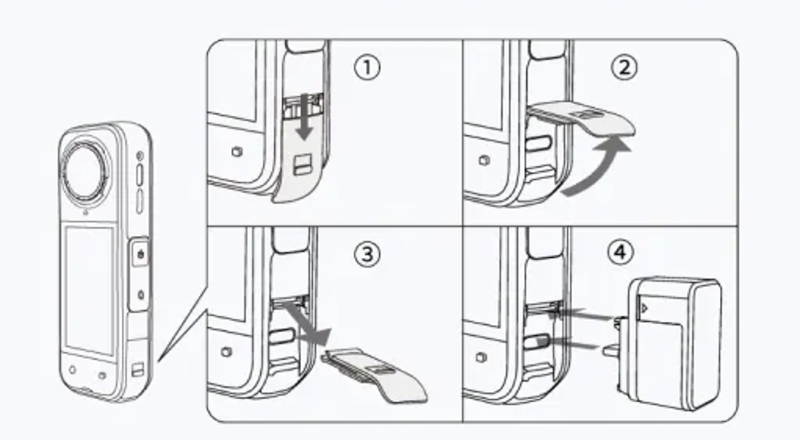
- The Quick Reader serves as an independent storage module in which videos and photos can be saved while shooting.
- Push the latch down (1), open the USB Cover outwards (2), then pull out the cover (3).
- Plug the Quick Reader into the camera's USB-C port (4) and gently press it until secure. A prompt (Quick Reader connected) will appear on screen.
- When not in use, remove the Quick Reader and reinstall the USB Cover.
- Notes: When a camera first connects to the Quick Reader, it will take some time to
load.
Even if there is a microSD card in the camera, data will be saved to the microSD card in the Quick Reader as a priority when it is connected. Removing the Quick Reader during shooting halts recording and prevents footage from being stored in the reader. If disconnected during an update, the update will be interrupted and the camera will restart. If the Quick Reader has neither a microSD card nor sufficient storage space, or encounters a data read error, change the save location to the microSD card in the camera. Ensure your camera's microSD card works well and has enough storage space.
| If the Quick Reader has no card, not enough space, or there is an error | |
|---|---|
| Condition | Result |
| Recording state | Camera stops recording and a prompt appears on the screen. Select Yes to switch the save location to the camera microSD card. |
| Non-recording state | A prompt appears on the touchscreen. Select Yes to switch the save location to the camera microSD card. |
| Insert a new microSD card into the Quick Reader when the prompt appears | Unusable: Prompt remains on screen. Usable: Prompt is removed from screen. |
| Remove the Quick Reader when the prompt appears | The prompt disappears and the save location remains unchanged. |
| Successfully switch the save location to the camera microSD card | The footage will be stored in the camera microSD card the next time you use the Quick Reader. |
| The camera lacks a microSD card or the camera's microSD card has storage/data issues | No prompt appears and the save location remains unchanged. |
Connected to a phone or tablet
- When connected to a phone or tablet, files on the Quick Reader can be played and edited directly in the
Insta360 app.
Devices with a USB-C port: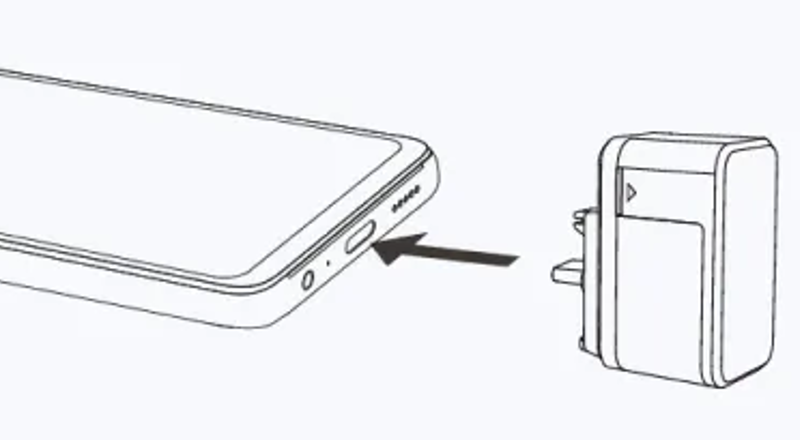
Devices with a Lightning port: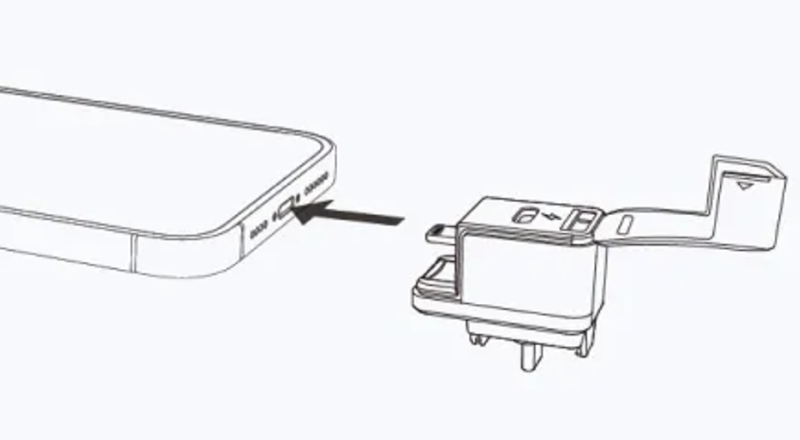
- Download the Insta360 app on a phone or tablet.
- Connect the Quick Reader and open the Insta360 app.
- Check and edit the videos and photos in the Quick Reader.
On iOS: Quick Reader files can be accessed directly.
On Android: In the Insta360 app, tap Settings > Quick Reader Settings > Choose directory > Use this folder to play and edit files. (On some phones, you will need to tap = in the upper left corner, select with its corresponding disk, then click "Use this Folder".) -
Notes: With some phone manufacturers, such as OPPO, you will need to enable OTG in the
phone's settings before using the Quick Reader. To ensure a solid connection, it is recommended to remove
phone/tablet covers before using the Quick Reader.
Devices that don't support exFAT, such as Google Pixel phones, cannot read files saved on the Quick Reader.
Honor 90GT and some VIVO phones are not compatible with this Quick Reader. For details, please visit https://insta360.com/support and enter the FAQ page for X5 camera to check compatibility.
Connected to a computer
- When connected to a computer, Quick Reader files can be fully accessed on a computer.
Charge devices
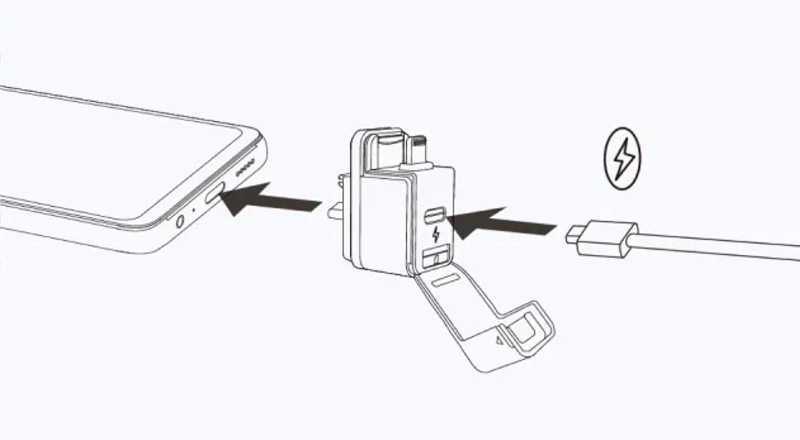
- To charge devices (cameras, phones and tablets) while recording or transferring files, insert the USB-C cable through the Quick Reader's USB-C charging port.
- Notes: When charging devices through the Quick Reader, be careful of the following conditions:
| Device types | Quick Reader Status |
|---|---|
| Unplugging the USB-C cable while charging devices and recording simultaneously | |
| X5 |
Quick Reader disconnects and then reconnects after 3 seconds to recover videos. If the video is shorter than 10 seconds, it cannot be restored. This includes the final 10 seconds of your last recorded video if interrupted. Videos that have finished recording are not affected. |
| Unplugging the USB-C cable while charging devices and editing videos simultaneously | |
| Devices with a USB-C port |
Quick Reader disconnects, then reconnects after 3 seconds. If disconnection happens during editing, select
the video you edited before disconnection, and the previous edits will be saved and recovered. If disconnection happens during export, a prompt will appear after the Quick Reader is reconnected. Select "Resume exports" to continue. |
| Charging phones through the Quick Reader with the USB-C cable and power adapter | |
| Honor 30, Redmi Note 12T Pro, Realme X70 PRO, Huawei nova6 (5G), Huawei P20 Pro, etc. |
Quick Reader disconnects, then reconnects after 3 seconds. If disconnection happens during editing, select the video you edited before disconnection, and the previous edits will be saved and recovered. If disconnection happens during export, a prompt will appear after the Quick Reader is reconnected. Select "Resume exports" to continue. |
| Redmi K70U, iqoo neo5se, etc. | Will not charge |
| Note: For phone models that are not mentioned, please visit https://insta360.com/support and consult Insta360’s Customer Service for further information. | |
Store another microSD card
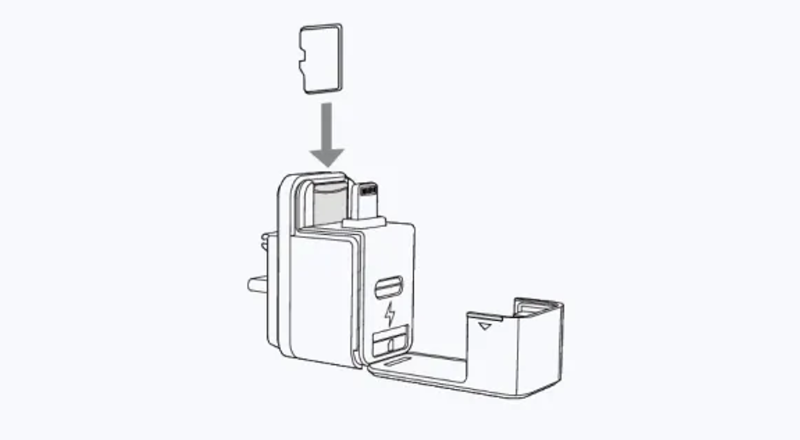
- Open the silicone cover and insert the microSD card into the Storage Slot as shown.
- Note: This slot is only used for storage, and cannot be used for saving or transferring files.
Notes
- The USB-C port on the Quick Reader is for charging only, not data transfer.
- Do not use the Quick Reader underwater or in wet environments.
- Do not charge the camera with the Quick Reader in damp conditions.
- Avoid use in high-vibration activities to prevent disconnection.
- When not in use, remove the Quick Reader and replace with the USB cover to protect the port.
Brand
Entity responsible for this product in the EU
Insta360 GmbHMore
ProducerArashi Vision Inc.Address:
Jinlitong Financial Center Bao'an District 11th Floor/Building 2Postal code: 518100City: ShenzenCountry: ChinaE-mail: service@insta360.com
Responsible entityInsta360 GmbHAddress:
Gartenfelder Str. 29-37Postal code: 13599City: BerlinCountry: GermanyE-mail: service@insta360.com
Symbol
Insta360 X5 Quick Reader
Producer code
6977644760284
Product Size
33,5x19x35 mm
Product WeightMore
Wartość podana w gramach (g)
15,8
Package Contents
Insta360 X5 Quick Reader - 1 szt.
Ask a question
Write your opinion
Not confirmed by purchase
Score: /5
Not confirmed by purchase
Score: /5